
Powtoon is integrated with the leading stock image websites, providing you with access to millions of images.
New : Try AI Text-to-Image
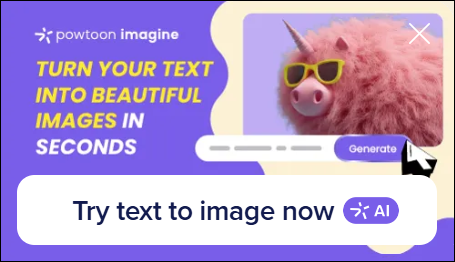
New : Try AI Text-to-Image
Do you want to upload your own image into Powtoon? Check out the article Uploading an Image.
Using keywords, you can search the image libraries from within Powtoon. All images accessed via Powtoon are free for use and have been designated as license-free.
Using keywords, you can search the image libraries from within Powtoon. All images accessed via Powtoon are free for use and have been designated as license-free.
In the Powtoon Studio, you need to be working in Create mode in order to add an image.
- Navigate to the slide to which you want to add the image.
- Select the Media tab to access the image libraries: Premium Images and Free Images.
- Click the library in which you want to search. In the example below, the Premium Images library is selected.
Note:
If you would like to search both image libraries, use the Search media search bar at the top of the page.
- In the search bar, type what you are looking for and press Enter.
In the example below, a search was run for the word books.
- Scroll through the results and select the desired image.
Before selecting the image, you can hover over the thumbnail to see a preview window appear.
Note:
If you would like the image to be the background for your slide, click the background icon.
- To return to the default view, click the X in the search bar.
Using Imagine Text-to-Image
- In the Studio, click on the Media tab.
- Click on the Try text to image now banner.
- Choose the aspect ratio.
- Add your prompt.
- Click Generate image.
- The Image is Generated, and automatically saved to your My Media folder. If you don't like the AI generated image, you can try again but clicking Regenerate, or changing the prompt, then clicking Regenerate.
- Click Add to scene to add the image to your Powtoon, as an object on the timeline.
- The Image will be added into the scene.
Comments
0 comments
Article is closed for comments.