
This article explains how to use the Admin Lock feature to prevent users from moving, editing, or deleting specific objects in a Powtoon. It applies to users with Org Admin permissions.
The Admin Lock feature gives Org Admins greater control over organizational branding by allowing them to lock objects in place within the studio. This is useful for protecting important branded elements such as logos, characters, images, and text.
Before you begin
You must have Org Admin permissions to use the Admin Lock feature.
What you can lock
You can apply Admin Lock to objects such as:
- Logos
- Characters
- Images
- Text objects
- Other studio elements that should remain unchanged
When an object is locked, other users cannot move, edit, or remove it while working on the Powtoon.
Locking an Object
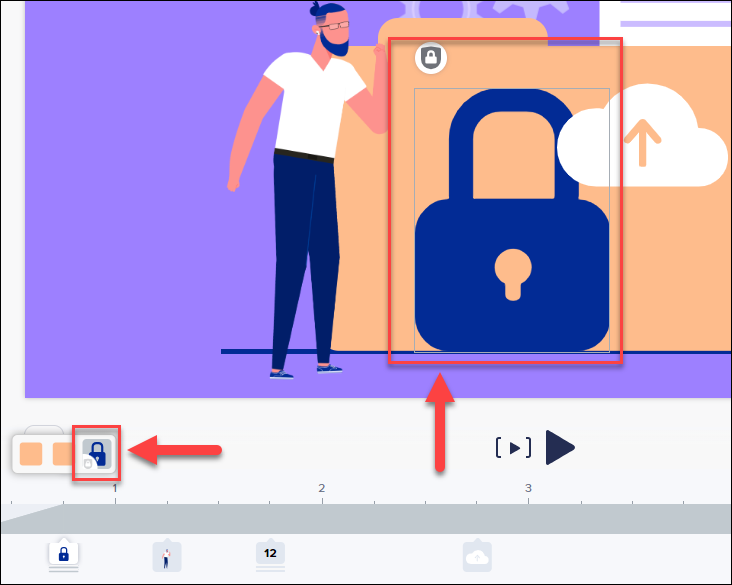
- Select the object you wish to lock. In this example, we will use the admin lock on the large blue padlock.

- Click on the Settings Icon
.
- Click on the Admin lock option.

This object has now been placed under an Admin lock. You can identify a locked object by the Admin lock badge that appears on the object, and on the timeline.

Un-Locking an Object
- Locate the Object you would like to unlock.
- Hover your mouse icon over the Admin Lock Badge.
- Click and hold (Long press) the Admin Lock badge until the object is unlocked. You can do this from the timeline, or on the object itself.

Comments
0 comments
Article is closed for comments.