
Before you begin
You must have Team Admin permissions to change a member's team assignments or roles. If you do not have Team Admin permissions, contact your organization's administrator for assistance.
Watch and Learn
Once a member has been added to any team in your organization, you can access the member's record to:
a. Add the member to another team
b. Remove the member from a team to which the member currently belongs
c. Change the member's role in a specific team
a. Add the member to another team
b. Remove the member from a team to which the member currently belongs
c. Change the member's role in a specific team
Add the member to another team
- Locate the member that you want to add.
- Click the member's name and then the three dots at the end of the row.
- Click Edit teams & roles.
- In the member's record, click Add to team.
- Open the Select team drop-down list and select the relevant team.
- By default, the member will have Team Member permissions in this team. If you need to change this, open the drop-down list and select Team Admin.
- Click Save.
Remove the member from a team to which the member currently belongs
- Locate the member that you want to remove.
- Click the member's name and then the three dots at the end of the row.
- Click Edit teams & roles.
- Click the
icon in the row of the relevant team.

NOTE
If the team member did not share any Powtoons, the following message will be displayed.
Click Confirm to remove the member from the team.
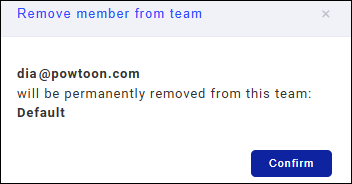
If the team member did not share any Powtoons, the following message will be displayed.
Click Confirm to remove the member from the team.
If the team member shared Powtoons with others, you will need to transfer ownership of the Powtoons before the member can be removed.
Select a team member from the drop-down list and then click Transfer.

Change the member's role in a specific team
- Locate the member that you want to change.
- Click the member's name and then the three dots at the end of the row.
- Click Edit teams & roles.
- Open the Powtoon role drop-down list and select the new role.
- Click Save.
Comments
0 comments
Article is closed for comments.